Internet Explorer Tip – Setting Your Home Page

by MikeM on November 11, 2008

The first web page that is displayed when you open Internet Explorer can be easily changed to a web page of your choice. This page is commonly referred to as the Home Page and can also be set to not display any default page, leaving the Home Page blank. Here are the steps for setting your home page in Internet Explorer:

1. Open Internet Explorer and go to the web page that you want to use for your Home Page.

2. Click on the drop down arrow next to the Tools button (it looks like a gear) in the Internet Explorer Command bar on the right side of the screen (shown below).

Command Bar for Internet Explorer

Command Bar for Internet Explorer

3. After clicking on the Tools button go to the bottom of the list that appears and click on “Internet Options.”

An Internet Options dialog box will now appear (see below).  Directly below the row of tabs in the dialog box will be an area labeled ”Home Page” and the address for your current home page will show in that box.
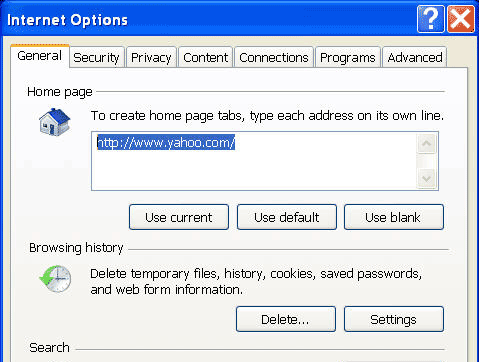
Internet Options dialog box for Internet Explorer

Internet Options dialog box for Internet Explorer

4. Click on the button labeled “Use Current” and the web address (URL) for your new home page will now appear in the box.

5. Go to the bottom of the Internet Options dialog box and click on Apply and then on OK.

  • Facebook
  • Twitter
  • StumbleUpon
  • Digg
  • Delicious
  • Mixx
  • Reddit
  • Yahoo Bookmarks
  • Share/Bookmark

Related posts:

  1. Changing Yahoo Search Settings
  2. Internet Security Threats – Video Insights on Current Dangers
  3. Gmail – 45 Timesaving Keyboard Shortcuts
  4. Top 15 Computer Tech Tips of 2009 from HTS Tech Tips
  5. Norton Product Updates – Windows 7 Compatibility

{ 1 comment… read it below or add one }

1 Mike McEvoy December 3, 2009 at 9:55 pm

@Vicki Schordje — if you are talking about switching back to the old Yahoo hompage format from the new Yahoo homepage it is not a simple step but I found a link that my help you. The process involves clearing the browser cache, cookies, temp files, etc. Here is the link with more info:
http://www.bukisa.com/articles/178621_how-to-switch-back-to-old-yahoo-home-page

If your question is regarding resetting the Internet Explorer Home Page, check out this previous post:
http://www.htstechtips.com/2008/11/11/internet-explorer-tip-opening-multiple-start-pages-at-launch/
–Mike

Reply

Leave a Comment

CommentLuv Enabled

Previous post:

Next post: